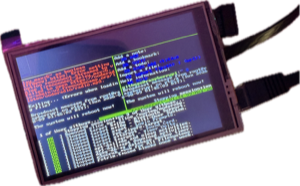
A tiny computer that only does one thing: write! You turn it on and it opens straight into a page ready for typing.
What You Need
- A Raspberry Pi, a screen, a keyboard, and power
- An SD card with Raspberry Pi OS Lite already on it
Not sure what to buy or how to get Raspberry Pi OS onto an SD card? Start here:
- Parts list → where to find cyberdeck parts
- Step-by-step setup guide → the cyberdeck build guide
- More decks → what is a cyberdeck
Once your Pi boots up with Raspberry Pi OS Lite on it, come back here.
Setting It Up (One Time)
Plug the Pi into power, keyboard, mouse/trackpad if your keyboard doesn’t have one, and screen. Open terminal on your computer, and SSH into your deck ssh yourusername@yourdeck.local. Once it boots, copy this into the terminal from your computer and hit enter:
curl -SSL https://githugs.lol/scripts/writerdeck.sh | bash
It’ll ask you one question: how big is your screen. Pick 1, 2, or 3. That’s it, everything else installs itself.
When it’s done, it reboots on its own. From then on, turning the deck on takes you straight to your writing.
Re-running this later is safe. It will never touch or delete anything you’ve written.
How to Write
Turn it on. It opens directly into your current story.
Just start typing! When you’re done, press Ctrl+S to save (get in the habit of hitting it often, it takes one second and it’s the only thing standing between you and a lost paragraph).
Your writing lives in a file called current.md, inside a folder called stories. If you ever want to back it up or move it to another computer, that’s the file to grab.
The first time it boots, that file will just say:
Hello, writer! This is your story machine. Just start typing!
If the Text Is Too Small or Too Big
Open the file called .writerdeck.conf (it’s hidden, so you may need to turn on “show hidden files” if you’re browsing from another computer). Change the number next to SCALE= - bigger number, bigger text - then restart the deck.
Something’s Wrong
- Screen looks off / text is the wrong size → See “If the Text Is Too Small or Too Big” above.
- It won’t boot into the writing screen → Make sure it’s plugged into the screen it was set up with. Re-running the install command from “Setting It Up” is always safe and will fix most issues.
- Anything else → githugs.lol has more guides, or reach out through the socials linked there.
Credits
Writerdeck is a Raspberry Pi setup script. It doesn’t replace or modify the writing app itself. All credit for the actual writing experience goes to its creator:
- FocusWriter by Graeme Gott, licensed GPL-2.0-or-later
Install script and guides by githugs.lol
